
QQ Bridge


NapCat One-Click Deployment (QQ Bridge · distrobox container)
Deploy NapCat inside a fresh distrobox Fedora container (with official LinuxQQ pre-installed) with a single command. It
exposes the OneBot11 protocol (WebSocket + HTTP) as the backend for harbour-qqcat and other QQ-bridge apps.
This package was hardened through real fresh-machine deployments: every pitfall hit during setup is now an automatic
guard in the scripts. Goal: one command, one QR scan, done on the first try.
What's inside
┌───────────────────────────────────┬─────────────────────────────────────────────────────────────────────────────────┐
│ File │ Purpose │
├───────────────────────────────────┼─────────────────────────────────────────────────────────────────────────────────┤
│ napcat-deploy.sh │ Main one-click deployer: dependencies, download, injection, pre-written config, │
│ │ QR login, verification │
├───────────────────────────────────┼─────────────────────────────────────────────────────────────────────────────────┤
│ napcat-status.sh │ Post-deploy / daily health check: process, 3 ports, online status, roster API, │
│ │ token, recent errors │
├───────────────────────────────────┼─────────────────────────────────────────────────────────────────────────────────┤
│ harbour-qqcat-1.0.0-1.aarch64.rpm │ QQ bridge app (install on host: zypper in ./xxx.rpm or pkcon) │
├───────────────────────────────────┼─────────────────────────────────────────────────────────────────────────────────┤
│ README.md │ This document │
└───────────────────────────────────┴─────────────────────────────────────────────────────────────────────────────────┘
Install the app on the host:
```bash
devel-su zypper in ./harbour-qqcat-1.0.0-1.aarch64.rpm
```
- Frontend (OpenRepos): harbour-qqcat-1...
- Backend bundle (OpenRepos): new-deployment-...
(On the host: download it, rename to new-deployment-qqcat.tar.gz, extract, and place the two .sh files on the host.)
│ Deploy NapCat inside the container first — run napcat-deploy.sh before installing the app for the best experience.
Requirements
- Host: SailfishOS or any Linux with distrobox
- Container: Fedora (created via distrobox), with official LinuxQQ installed (/opt/QQ/qq exists)
- defaultuser inside the container can passwordless-sudo (distrobox default is fine)
- The bot QQ account is logged in on mobile QQ (needed for QR authorization)
Quick start
```bash
# 0. Copy the whole directory to the new host, e.g. ~/new-deployment-qqcat/
# 1. Wake the container if it is not running
distrobox enter fedora44 -- true
# 2. One-click deploy (replace with your own QQ number)
cd ~/new-deployment-qqcat
bash napcat-deploy.sh <YourQQNumber>
# 3. Scan ~/napcat-qrcode.png with mobile QQ and confirm authorization
# 4. Health check
bash napcat-status.sh
```
Success = ✓ Login successful! plus three ✓ in the final summary.
napcat-deploy.sh arguments
```bash
bash napcat-deploy.sh <QQNumber> [ContainerName] [GitHubProxy] [--install-service]
```
┌───────────────────┬────────────────────────────────────────────────────────────┬──────────┐
│ Argument │ Description │ Default │
├───────────────────┼────────────────────────────────────────────────────────────┼──────────┤
│ <QQNumber> │ Required. Bot account, used to pre-write the OneBot config │ — │
├───────────────────┼────────────────────────────────────────────────────────────┼──────────┤
│ [ContainerName] │ distrobox container name │ fedora44 │
├───────────────────┼────────────────────────────────────────────────────────────┼──────────┤
│ [Proxy] │ GitHub download proxy, e.g. http://<proxyIP>:<port> │ direct │
├───────────────────┼────────────────────────────────────────────────────────────┼──────────┤
│ --install-service │ Also install a systemd user service for autostart │ off │
└───────────────────┴────────────────────────────────────────────────────────────┴──────────┘
Env vars: NAPCAT_CONTAINER / NAPCAT_PROXY / NAPCAT_VERSION (pinned to v4.18.19 by default; latest or any tag allowed) /
NAPCAT_QR_OUT (QR output path).
What the script does automatically
- Checks QQ + passwordless sudo inside the container, installs unzip / Xvfb
- Full cleanup (including zombie instances), verifies REMAIN=0
- Downloads NapCat.Shell.zip (reuses the cached full zip in the container; falls back to proxy if direct fails)
- Backs up original package.json → .orig, extracts, injects, sets "main": "./napcat.mjs"
- Writes the OneBot11 config to both effective paths:
- ~/.config/QQ/NapCat/config/onebot11_<QQNumber>.json
- /opt/QQ/resources/app/config/onebot11_<QQNumber>.json
- Both include WebSocket (:3001) and HttpApi (:3000) — both are mandatory
- Launches (fixed xvfb display :88 to keep a stable device fingerprint and stay logged in), syncs the QR code to the
host
- Polls logs until login succeeds; if "account already logged in on another device" is detected, prints precise
remediation steps
- Verifies :3001 listening → sets autoLoginAccount → prints the WebUI token and the three bridge fields
After deploy: bridge app configuration
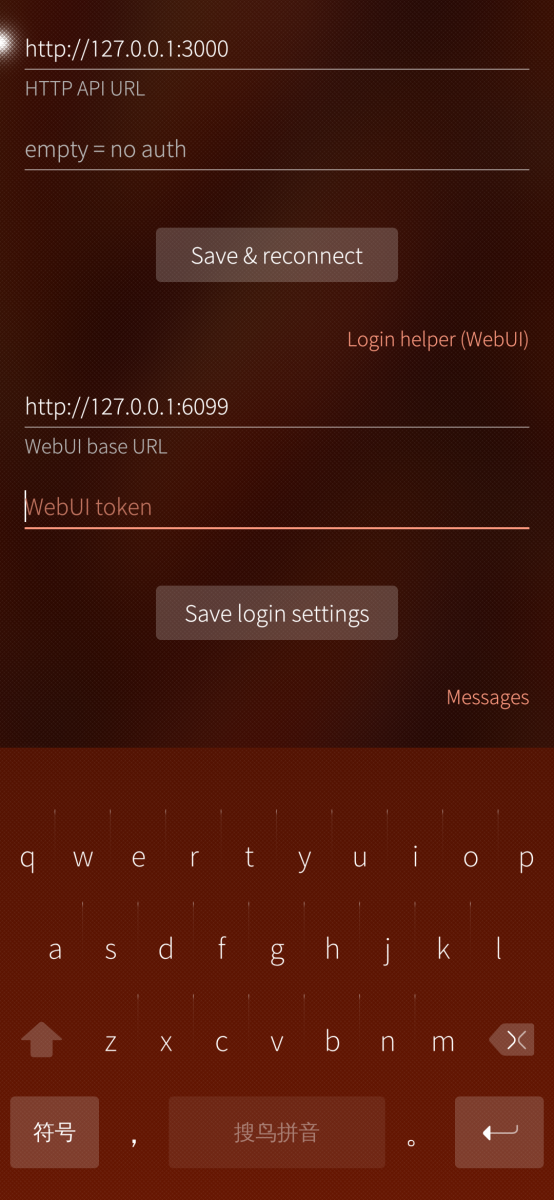
Fill these three fields in the harbour-qqcat Settings page (also printed at the end of the script):
```text
wsUrl = ws://127.0.0.1:3001
webuiBase = http://127.0.0.1:6099
webuiToken = <token printed by the script>
```
The token is randomly generated on NapCat's first start and lives in /opt/QQ/resources/app/config/webui.json inside the
container. Trust this copy — there may be stale copies elsewhere in the container, don't copy the wrong one.
Health check
```bash
bash napcat-status.sh # default container
bash napcat-status.sh mycontainer
```
Reports: instance count, three ports, get_status online state, live roster API test, token, recent error lines.
Healthy = 1 instance; all three ports listening; online: true; HTTP returns friend data.
Troubleshooting (symptom → cause → fix)
① App shows "WebUI auth failed"
Cause: token in the app doesn't match the running instance (usually a stale value copied from an old config dir).
Fix: run bash napcat-status.sh, use the "WebUI token" line it prints.
② Log says "account already logged in, cannot login twice"
Cause: another device (old NapCat / another desktop client) still holds this account's PC session; or multiple QQ
instances in the same container are fighting.
Fix: stop the other device (old machine: systemctl --user stop napcat), confirm napcat-status.sh shows exactly 1
instance, re-run the deploy script.
③ Quick login asks for "mobile QQ verification"
Cause: new-device risk control, Tencent requires mobile QQ approval.
Fix: tap approve in the mobile QQ popup; if missing/expired, re-scan the QR code.
Permanent fix: set a quick-login password via env (see "Verification-free restart" below).
④ WS works and messages arrive, but the roster spins / stuck at "starting bridge"
Cause: HttpApi (:3000) missing! The roster goes over HTTP, not WebSocket.
Fix: check both onebot11 configs for httpServers (port 3000), add it back, restart QQ. The v2 seed config already
includes it, so this should no longer happen.
⑤ :3001 is listening but get_status never responds
Cause: the OneBot config was normalized/overwritten by NapCat into an empty service list.
Fix: merge websocketServers / httpServers back into /opt/QQ/resources/app/config/onebot11_<QQNumber>.json, then
restart.
⑥ QR scanned but nothing happens / expired
The QR refreshes roughly every 2 minutes; ~/napcat-qrcode.png keeps updating — close and reopen the image, then scan
again.
After scanning, watch for the authorization popup on the phone — you must tap agree.
File locations inside the container
┌──────────────────────────────────────────────────┬──────────────────────────────────────────────────┐
│ File │ Notes │
├──────────────────────────────────────────────────┼──────────────────────────────────────────────────┤
│ /opt/QQ/resources/app/package.json.orig │ Original QQ entry backup (for uninstall/restore) │
├──────────────────────────────────────────────────┼──────────────────────────────────────────────────┤
│ /opt/QQ/resources/app/package.json │ Patched to "main": "./napcat.mjs" │
├──────────────────────────────────────────────────┼──────────────────────────────────────────────────┤
│ /opt/QQ/resources/app/napcat/ + napcat.mjs │ NapCat itself │
├──────────────────────────────────────────────────┼──────────────────────────────────────────────────┤
│ /opt/QQ/resources/app/config/webui.json │ ⭐ Effective WebUI config (the token lives here) │
├──────────────────────────────────────────────────┼──────────────────────────────────────────────────┤
│ /opt/QQ/resources/app/config/onebot11_<uin>.json │ ⭐ Effective OneBot config │
├──────────────────────────────────────────────────┼──────────────────────────────────────────────────┤
│ ~/.config/QQ/NapCat/config/onebot11_<uin>.json │ Same content, backup path │
├──────────────────────────────────────────────────┼──────────────────────────────────────────────────┤
│ /tmp/napcat.log │ Runtime log │
└──────────────────────────────────────────────────┴──────────────────────────────────────────────────┘
Autostart
```bash
bash napcat-deploy.sh <QQNumber> fedora44 "" --install-service
```
Creates ~/.config/systemd/user/napcat.service: pre-start cleanup to avoid crash-loops, fixed display :88 to keep the
device fingerprint. Manage with:
```bash
systemctl --user status napcat
systemctl --user restart napcat
systemctl --user disable napcat # when moving between machines, disable the old side
```
Verification-free restart (optional hardening)
Frequent restarts on a new device keep triggering mobile verification. Setting a quick-login password skips it:
Edit the service's ExecStart, prefix qq with:
```bash
env ACCOUNT=<QQNumber> NAPCAT_QUICK_PASSWORD=YourQQPassword
```
Uninstall / rollback
```bash
# inside the container
distrobox enter fedora44
cd /opt/QQ/resources/app
pkill -9 -f '/opt/QQ' # stop QQ
cp package.json.orig package.json # restore entry
rm -rf napcat napcat.mjs loadNapCat.js # remove NapCat
# onebot11_*.json and webui.json under config/ can be removed as well
```
Remove autostart on the host:
```bash
systemctl --user disable --now napcat && rm ~/.config/systemd/user/napcat.service
```
Security notes
- WebUI (6099) listens on all interfaces — don't expose it to the public internet; if the token leaks, change
webui.json and restart.
- Multiple devices must not run NapCat for the same account at once (they kick each other); stop the old machine before
bringing up the new one.
Version
napcat-deploy.sh v2 (2026-08-25) — all fresh-machine lessons absorbed:
- Dual-path pre-written OneBot config (incl. HttpApi:3000, fixes "roster stuck")
- File-based cleanup, no more zombie instances from pkill self-matching
- Token only trusted from the running instance; 3-level download fallback + zip cache; idempotent re-runs
Screenshots:
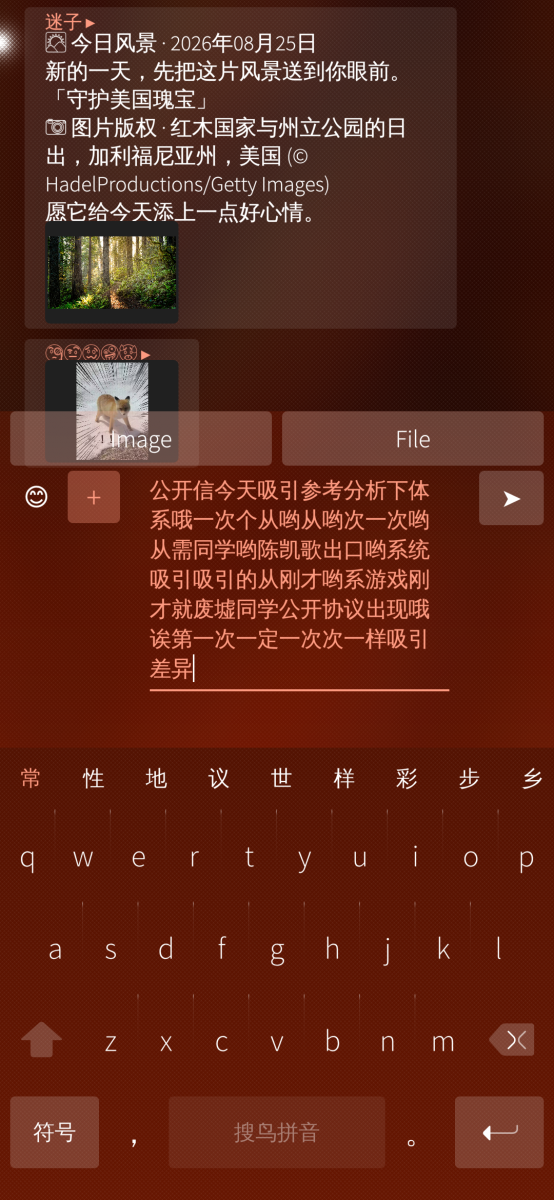
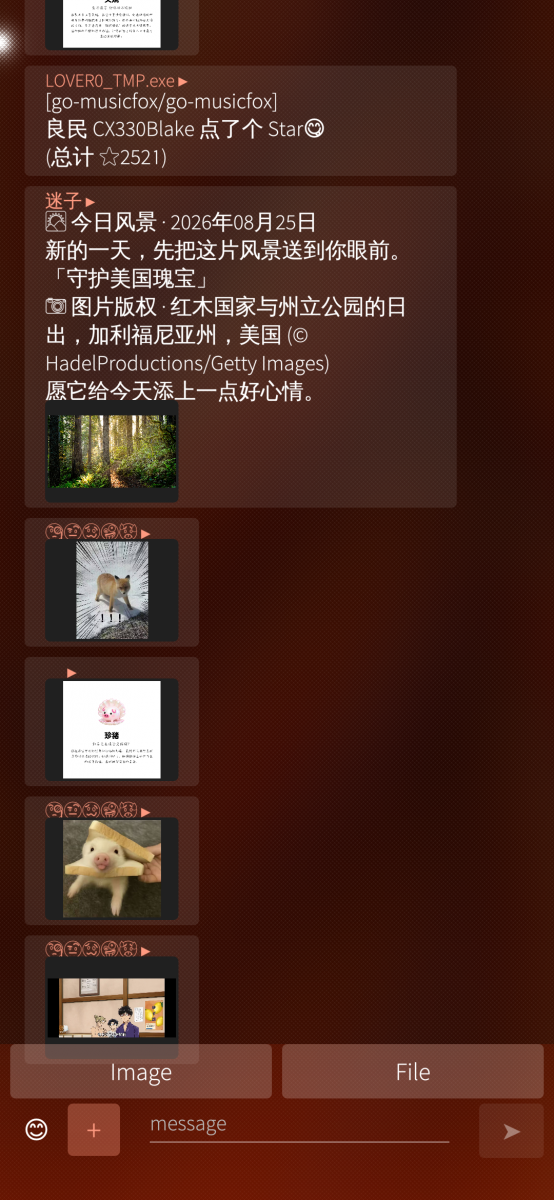
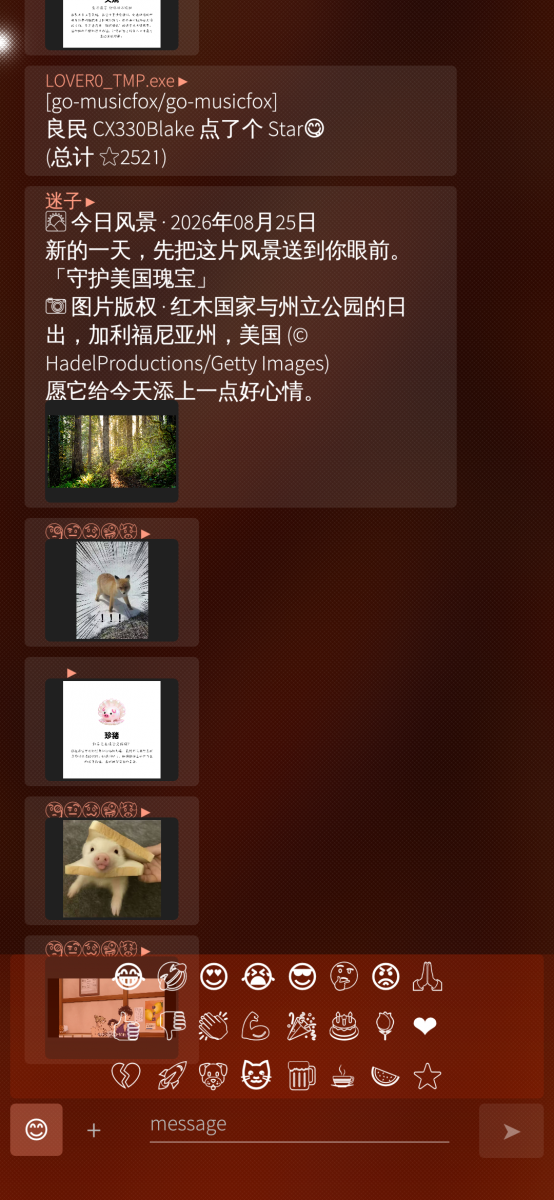
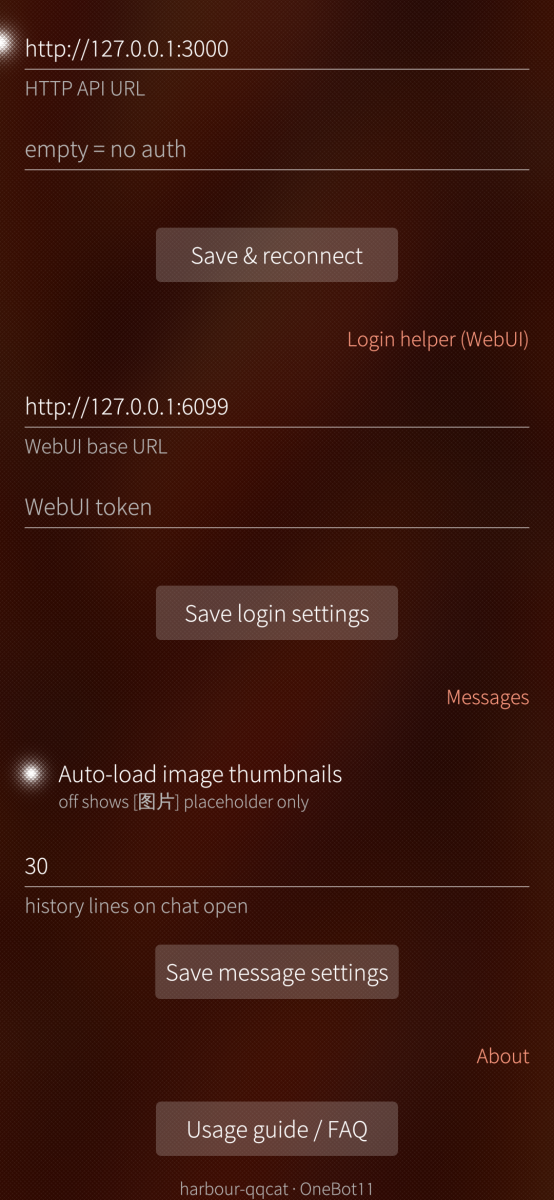

Category:
Application versions:
| Attachment | Size | Date |
|---|---|---|
 new-deployment-qqcat.tar_.gz_.rpm new-deployment-qqcat.tar_.gz_.rpm | 238.76 KB | 25/08/2026 - 20:29 |
| harbour-qqcat-1.0.11-1.aarch64.rpm | 238.38 KB | 04/09/2026 - 23:45 |
| harbour-qqcat-1.0.0-34.armv7hl.rpm | 231.4 KB | 08/09/2026 - 21:45 |
Changelog:
(none)
Comments
Pemek
Wed, 2026/09/02 - 11:14
Permalink
Could you please make a proper description in English?